

Scanning for Device/Factory Reset#
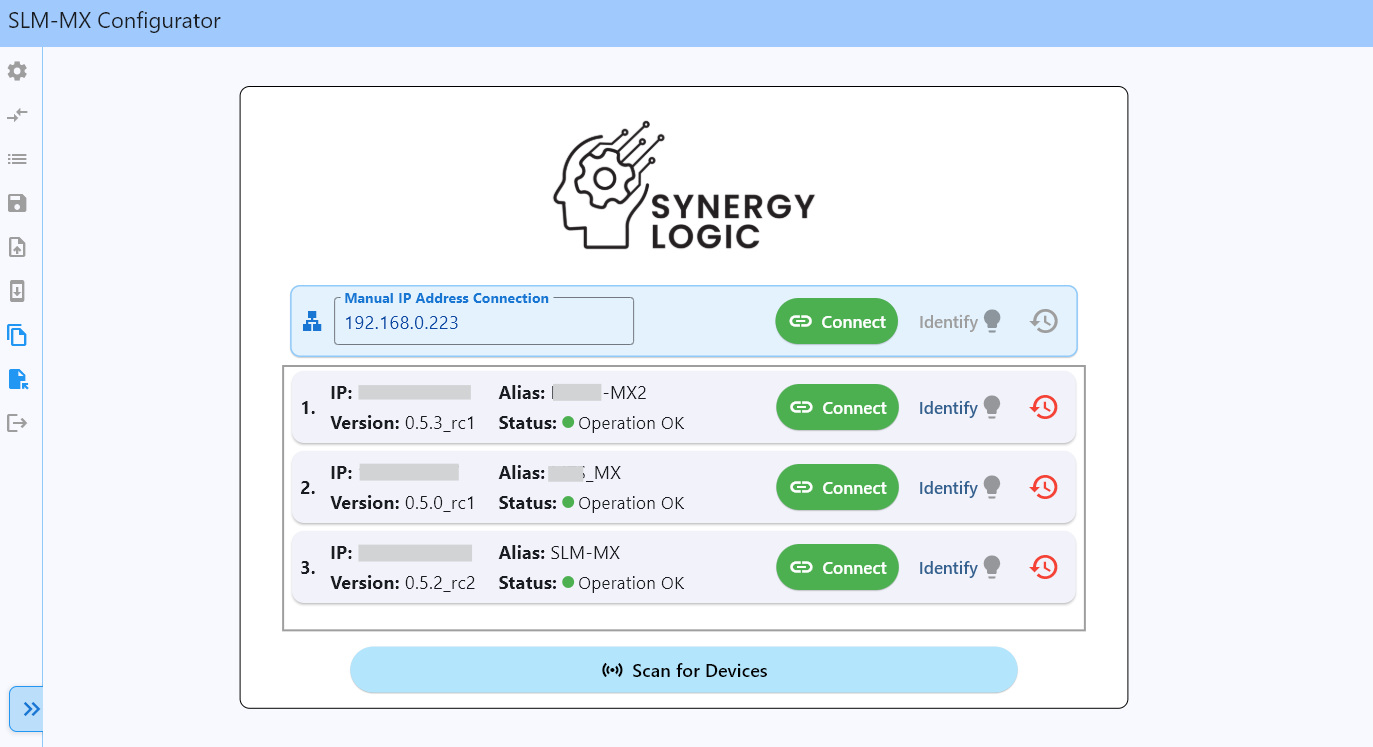
The SLM-MX Configurator provides an automatic device discovery feature that scans your local network for any connected SLM-MX devices.
Upon launching the SLM-MX Configurator, it will automatically start scanning for devices on your network.
You can also manually start a scan by clicking the “Scan for Devices” button near the bottom of the page.
Device Discovery Issues?#
If you’re having trouble finding your SLM-MX device, try these solutions:
Common Discovery Problems & Solutions
Quick Fixes to Try First:
Restart the SLM-MX device and rescan
Try manual connection using IP 169.254.10.10 or the static IP address if set
Temporarily disable computer firewall and rescan
No devices found in scan:
Ensure the device is powered on and connected to the network
Check that your computer is on the same network as the SLM-MX
Verify DHCP is enabled on your network, or manually connect using IP 169.254.10.10
Network Switch Settings:
UDP Multicasting: Device discovery uses UDP multicasting. Ensure UDP multicast is enabled on your switch/router
IGMP Snooping: This feature may prevent device discovery. Try temporarily disabling IGMP snooping on your network switch
Port Security: Ensure switch ports aren’t blocking new MAC addresses
Firewall & Security:
Verify that no firewall is blocking UDP traffic on your network
Check Windows Firewall or antivirus software isn’t blocking the configurator
Manual Connection:
Try manually entering the IP address if automatic discovery fails
For APIPA addresses (169.254.x.x), see the Manual Connection section below
Advanced Network Troubleshooting:
Network Segmentation: Ensure your computer and SLM-MX are on the same network segment (same subnet/switch)
Network Switch Configuration: Some managed switches may block UDP multicast traffic, this can be configured in the switch settings
Computer Network Settings: Check your computer’s IP address matches the SLM-MX subnet:
Windows: Run
ipconfigin Command PromptMac/Linux: Run
ifconfigin TerminalShould be 169.254.x.x (APIPA) or 192.168.x.x (static)
Multiple Network Adapters: If your computer has multiple network adapters, ensure you’re using the correct one
Still having issues?
Try resetting the SLM-MX-Configurator application
We recommend using a static IP address for the most reliable connection
Please contact us at support@synergy-logic.com for further assistance
Successful Device Discovery#
If the scan is successful, you will see a list of devices found on your network. Each device listed will have the following information:
IP Address
Device Alias
Firmware Version
Device Status
Identify SLM-MX Button
Factory Reset Button
You can select a device from the list and click the “Connect” button to begin configuration.
Identify SLM-MX Device#
On each scanned device, there is a button to “Identify 💡”.
This will blink the CPU (RED) LED on the device for a short duration.
Device Status#
The device status can be one of the following:
Awaiting Configuration: The device does not have modules configured.
Operation OK: The device is online and operating normally.
Suspended: The device has input and outputs disabled during a firmware update
Watchdog Timeout: The device has modbus communication disabled (with the exception of SLMMX modbus registers) after a defined timeout after the last modbus communication.
Slot Mismatch: The device has detected that the modules in the device do not match the modules configured in the configurator and all inputs and outputs are disabled.
Note
The SLM-MX will still show Operation OK if it detects additional unconfigured modules as long as all slots until the last configured slot have been configured. The new module will remain disabled until it is configured.
Example: The MX has already been configured with 4 modules, with a new module added to the end of the device.
[SLM-MX] |—-[Module 1] |—-[Module 2] |—-[Module 3] |—-[Module 4] |—-[NEW MODULE]
In this case, the SLM-MX will show Operation OK even though the new module is not configured, and modules 1-4 will operate normally.
[SLM-MX] |—-[Module 1] |—-[Module 2] |—-[NEW MODULE] |—-[Module 3] |—-[Module 4]
In this case, the SLM-MX will show Slot Mismatch because the order of the modules does not match the order of the modules in the configurator. No modules will operate until either the previous order is restored or the device is reconfigured.
Automatic Discovery#
Launch the SLM-MX Configurator application
Either wait for the automatic discovery to complete or click the “Scan for Devices” button
Wait for the scan to complete
Select your device from the list of discovered devices
Click “Connect”
Manual Connection#
If using APIPA address (DHCP Fallback IP Address):#
Warning
Usage of APIPA address is not the intended use of the APIPA address and is only intended as a last resort. Please use a static IP address (192.168.x.x) for all production deployments.
If the MX is using an APIPA address, whether DHCP fails or manually set, the MX will need to be manually connected to the configurator.
If you have the MX connected to the network with an APIPA address, it will be detected by the configurator via UDP broadcasts, but you cannot establish a connection through the configurator until the MX is manually connected to the local-link network.
If you try to connect to the MX using its APIPA address when it is connected to the rest of the network, you will get the following error prompting you to connect via the local-link network.
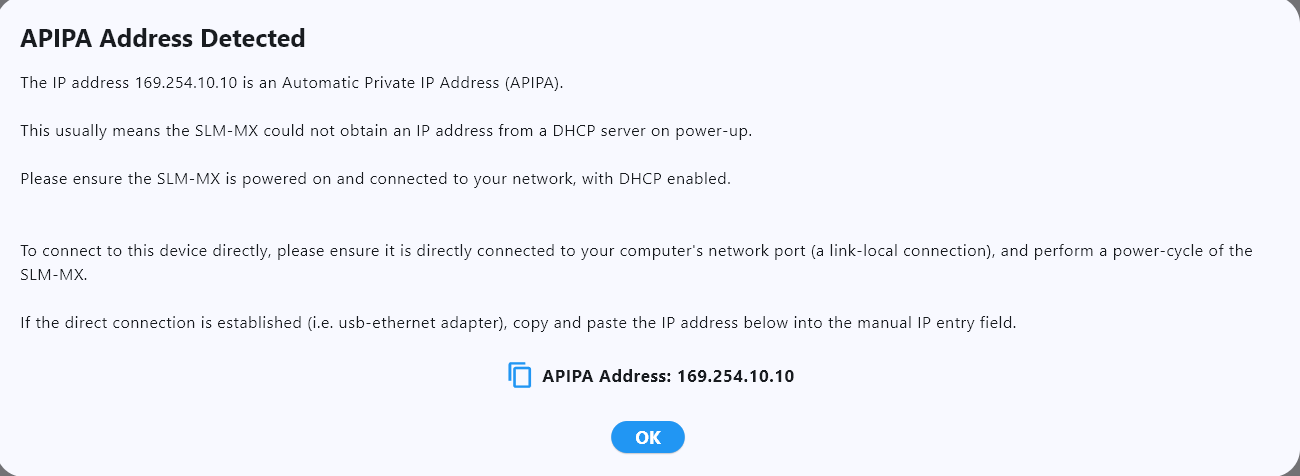
There are a few ways to connect to the MX via the local-link network:
Connect the MX to the computer running the configurator directly through a local-link network, as in directly connected to the computer’s network card, a network switch not connected to the internet, or a usb-ethernet adapter.
Edit the host computer’s network configuration to use the ipv4 address matching the APIPA address (ie 169.254.10.11)
Note
Once the MX is connected to the local-link network, you cannot scan for devices using the automatic discovery feature. You MUST manually enter the IP address of the MX into the configurator to connect.
Once the MX is connected via local-link, you can now connect via the configurator where you can set a static IP address for the MX.
How to Manually Connect to your SLM-MX:#
If automatic discovery fails, you can manually connect to your SLM-MX by:
Entering the IP address of your SLM-MX
Clicking “Connect”

When to Use Manual Connection#
We recommend manually entering the IP address when:
Automatic discovery consistently fails
You’re using a static IP configuration
You’re on a complex network with multiple subnets
You need a reliable, repeatable connection method
Note
Best Practice: We find that manually inputting the IP address of the SLM-MX is the most reliable method of connection. We recommend using a static IP address for the SLM-MX, and storing the IP address for future connections.
Factory Reset#
On the right side of each device card when scanning for devices, there is a button to factory reset the device. This will wipe the flash memory erasing all system and module configurations to stock settings.

You can also find an option to factory reset under the SLM-MX device card in the module configuration page.
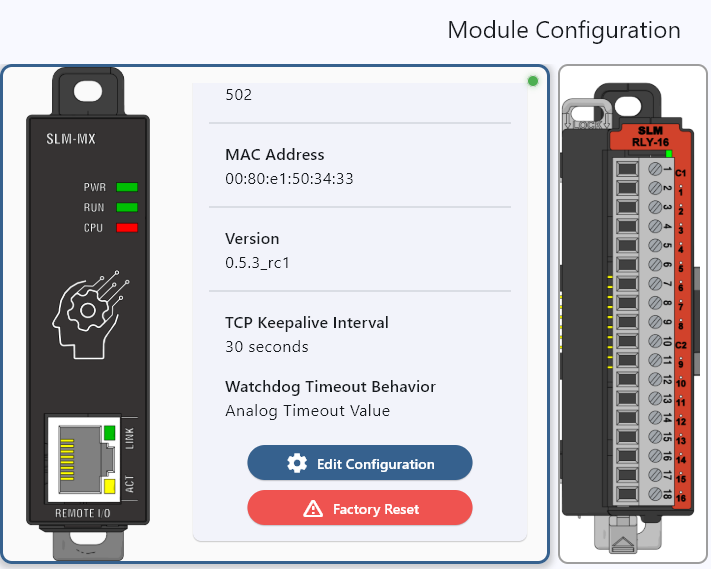
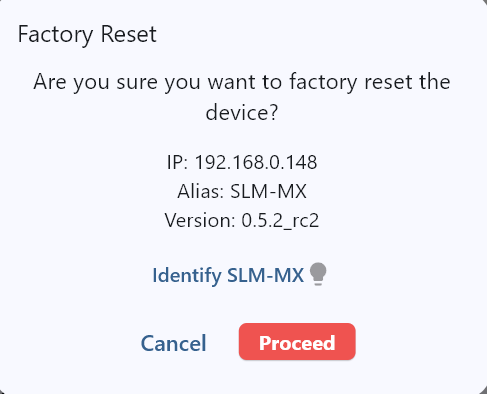
On clicking the factory reset button, a new window will appear to confirm the factory reset. This window will show the device IP and alias, as well as a button to “Identify SLM-MX”. Pressing Identify SLM-MX will blink the CPU (RED) LED on the device.
Factory Reset Sequence#
Click the “Factory Reset” button
Press “Identify SLM-MX” to blink the CPU (RED) LED on the device and confirm the factory reset using the Factory Reset.
The configurator will perform a brief handshake with the device, and will prompt you to power cycle the device. This is done by removing the 24V power from the device and reconnecting it.
Warning
You must power cycle the device while the configurator’s Factory Reset window is open
Upon power cycling the device, the configurator will perform another handshake with the device and then perform the factory reset. You will see a “Factory reset completed successfully” message in the configurator.
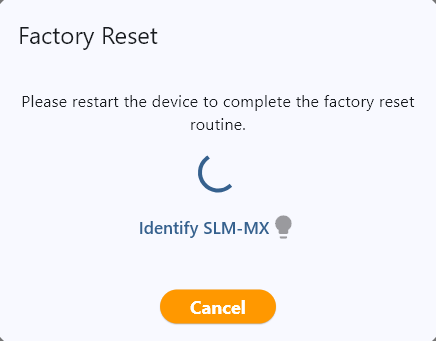
You will now be able to scan for devices again and configure the device as if it was a new device.
Note
If the factory reset fails at any point, please check your network connection and try again.
Side Menu#
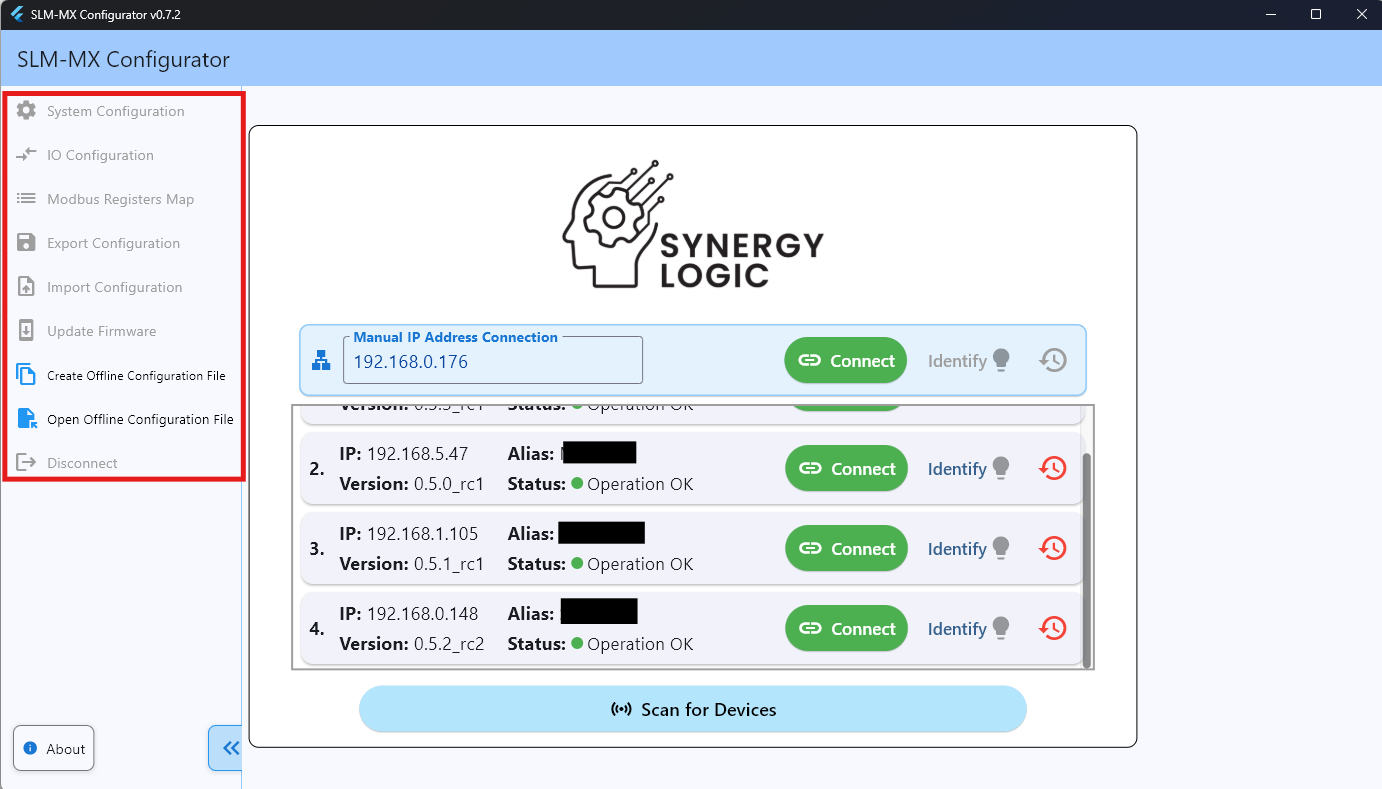 In this initial screen, you will also see a side menu. Hovering over this menu will reveal the following options revealing two accessible options:
Create Offline Configuration File
Import Offline Configuration File
The other options are only accessible when connected to a SLM-MX device.
Previous: SLM-MX Configurator | Next: Configuring Modules