

Creating and Importing Offline Configuration Files#
The SLM-MX Configurator allows you to create and manage offline configuration files, enabling you to prepare configurations without being connected to a device and import them later.
There are two ways to create an offline configuration:
Create a new offline configuration
Save a configuration from a connected device
Warning
You can only create and configure modules that will be attached to the SLM-MX device. System settings such as network, IP address, etc. cannot be configured offline.
Creating Offline Configurations#
To create an offline configuration:
Launch the SLM-MX Configurator
On the left menu bar, click on the “Create Offline Configuration” button
Select the first module you want to add to your configurator.
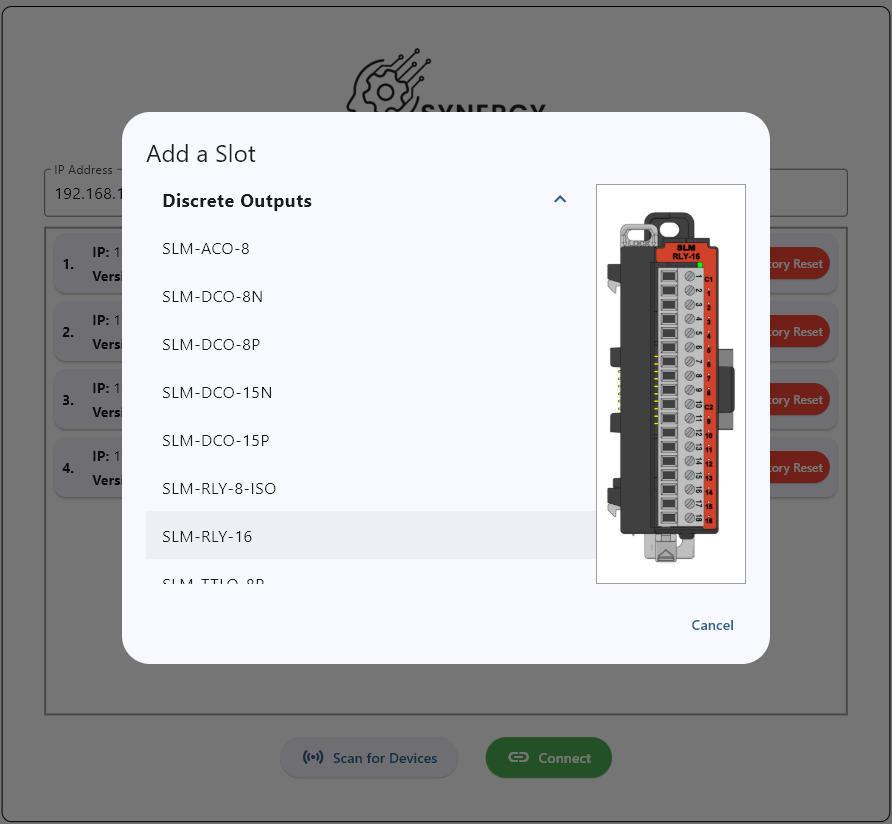
You’ll be directed to a new page where you can add and configure modules as needed. You can also remove modules from the configuration by clicking on the trash icon on the top right of the module card.
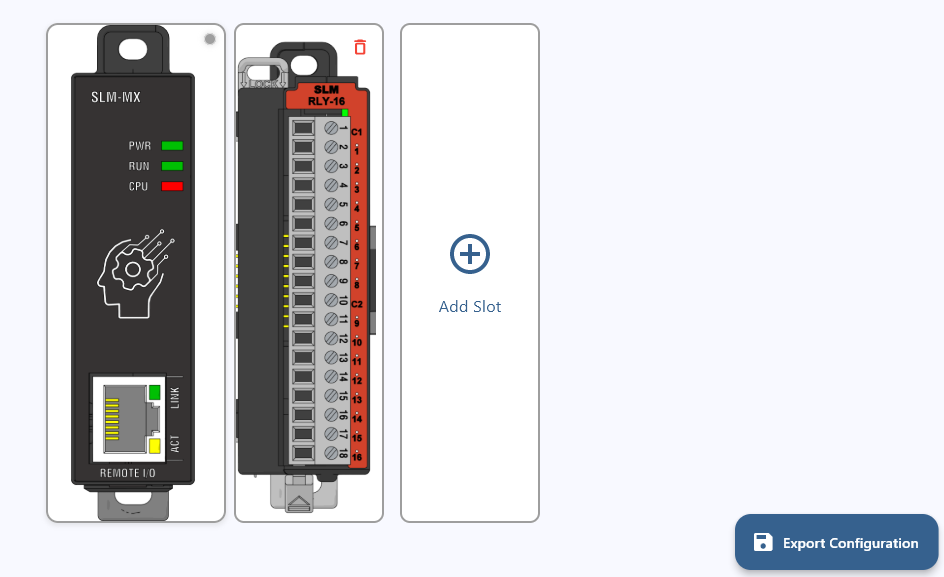
Once you’ve added and configured all the modules you need, you can save the configuration by selecting the “Export Configuration” button on the bottom right of the page. This will export as a .slmmx file.
You can also view the modbus addresses of your configuration by going to the “Modbus Registers Map” tab on the left.
Saving Configuration from Connected Device#
You can also save the configuration from a connected device:
Connect to your SLM-MX device
Navigate and select the “Export Configuration” button on the menu bar to the left.
Choose a location and filename for the configuration file and select “Save”.
Importing Configuration Files#
Note
If you are importing a configuration to a connected device, the SLM-MX MUST
Have connected the same modules as referenced in the configuration file.
OR
Have no modules attached.
To import a previously saved configuration:
Connect to your SLM-MX device
Select “File” > “Import Configuration”
Browse to the location of your configuration file
Select the file and click “Open”
Review the configuration details
Click “Apply” to upload the configuration to the device
You can also import and edit a configuration offline by selecting the “Import Offline Configuration” tab on the left menu bar.
Troubleshooting Import Issues#
If you encounter issues when importing a configuration:
Check that all modules referenced in the configuration are physically installed or nothing is attached to the SLM-MX.
Ensure that the configuration file is valid by importing it as an offline configuration.
Try restarting the device and configurator software before importing again.
Previous: Viewing and Exporting Modbus Addresses | Next: Firmware Update