

FUXA: A Local HMI#
FUXA is a free, open-source SCADA/HMI package that runs on the SLM-RP4 itself. A browser pointed at the device presents a dashboard with gauges, bar graphs, sliders and trend charts, without a separate HMI panel or a cloud service.
FUXA communicates over Modbus TCP, which is how it reaches your data whichever way the device is programmed.
Which architecture#
FUXA is a Modbus TCP client. It connects to a Modbus server running on the SLM-RP4, whichever software provides it:
The runtime’s built-in Modbus server, enabled in the PLC project. See Modbus server in the OpenPLC Editor documentation.
A Modbus server in your own program. See A Python Modbus server below.
┌─────────────────┐    Modbus TCP     ┌──────────────────┐     SPI     ┌───────────┐
│   FUXA server   │ ◄── localhost ──► │  Modbus server   │ ◄────────►  │ Backplane │
│   (port 1881)   │                   │  (runtime or app)│             │           │
└────────┬────────┘                   └──────────────────┘             └───────────┘
         │ HTTP
   ┌─────▼──────┐
   │  Browser   │  on your workstation, or a panel PC
   └────────────┘
Both sides run on the same device, so they talk over the loopback interface.
Installing FUXA#
FUXA requires Node.js. The FUXA project recommends Node.js 18 LTS; Node.js 14 and older are not supported since FUXA 1.2.7.
# Install nvm, the Node version manager
curl -o- https://raw.githubusercontent.com/nvm-sh/nvm/v0.40.8/install.sh | bash

# Reopen the shell, then
nvm install 18
node -v && npm -v
Install FUXA itself. This takes a while on a Raspberry Pi:
npm install -g --unsafe-perm @frangoteam/fuxa-min
Note
fuxa-min is the smaller build, without the node-snap7 dependency used for
direct Siemens S7 connections. It is the appropriate choice here, as it builds
cleanly on current Node versions and nothing in this guide requires S7. If you
need S7 support, install the full @frangoteam/fuxa package instead.
Run it:
fuxa
2026-08-11T13:04:41.945Z [INF]  FUXA V.1.1.19
2026-08-11T13:04:46.808Z [INF]  FUXA started!
2026-08-11T13:04:46.826Z [INF]  WebServer is running http://127.0.0.1:1881/
Open it from your workstation at http://<device-ip>:1881/, or locally at
http://localhost:1881/.
To start FUXA at boot, see Running on Boot. The unit file
takes the same form, with ExecStart pointing at the fuxa binary. Locate it
with which fuxa; npm installs under ~/.nvm/versions/node/.
Connecting FUXA to your data#
Open the hamburger menu at the bottom left  and choose Editor. Click the settings gear
 and open Connections.
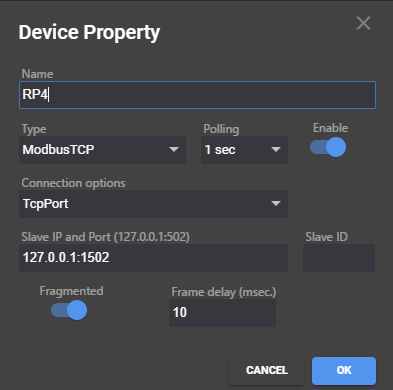
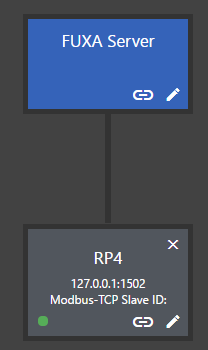
Add a device with  and configure it as a
Modbus TCP client.
and configure it as a
Modbus TCP client.
Field |
OpenPLC Runtime |
Python or C++ server |
|---|---|---|
Address |
|
|
Port |
The port set for the Modbus server in the PLC project (default |
The port your program binds ( |
Protocol |
Modbus TCP |
Modbus TCP |
Adding tags#
Tags are the individual values FUXA reads and writes. In the Connections view
you can switch between a list and a node-based layout; click the tag icon
 under your device to add one.
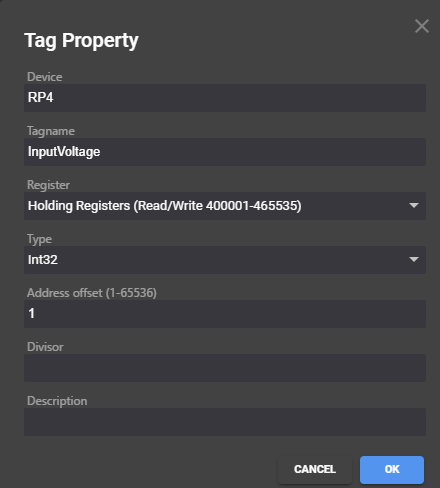
The address you enter uses traditional Modbus notation:
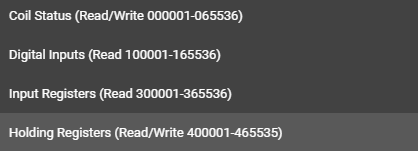
Range |
Type |
Access |
|---|---|---|
0xxxx |
Coils |
Read/write bit |
1xxxx |
Discrete inputs |
Read-only bit |
3xxxx |
Input registers |
Read-only word |
4xxxx |
Holding registers |
Read/write word |
With OpenPLC Runtime, the mapping of PLC variables to these ranges is documented in Modbus Addressing. With a Python or C++ server, your program defines the mapping.
With data flowing, the tag’s value updates live in the editor:

If a tag never updates
Check the data type first. A tag configured with the wrong type, whether signed against unsigned or word against double word, usually shows a plausible but frozen value rather than an obvious error.
A 32-bit value requires two consecutive registers and an agreed word order,
which is a common cause of incorrect readings. Publishing analog values as raw
counts in a single UINT register avoids the problem.
Building a dashboard#
Back in the editor, add a view and start placing widgets.
Displaying values#
Drop a label and bind it to a tag:
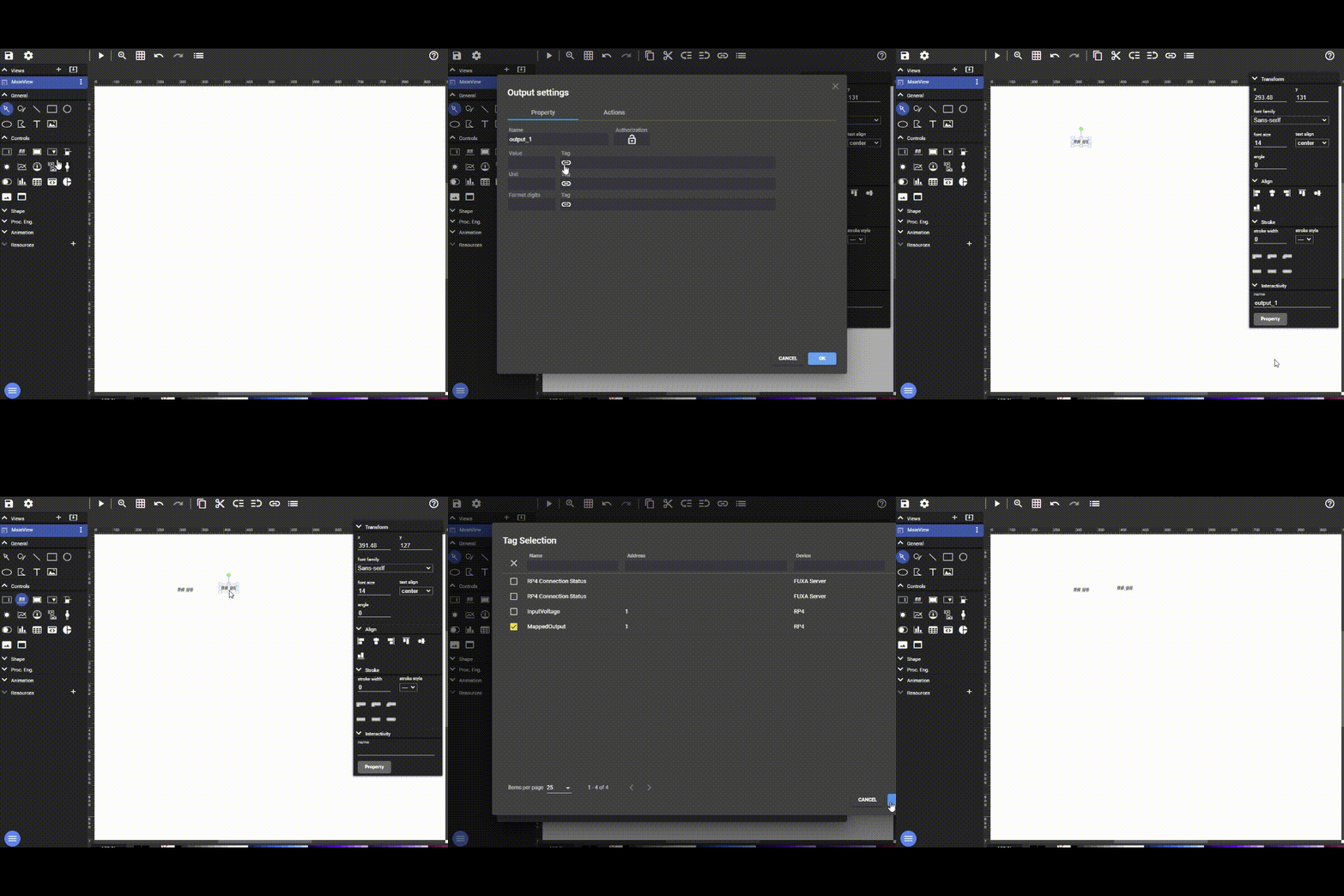
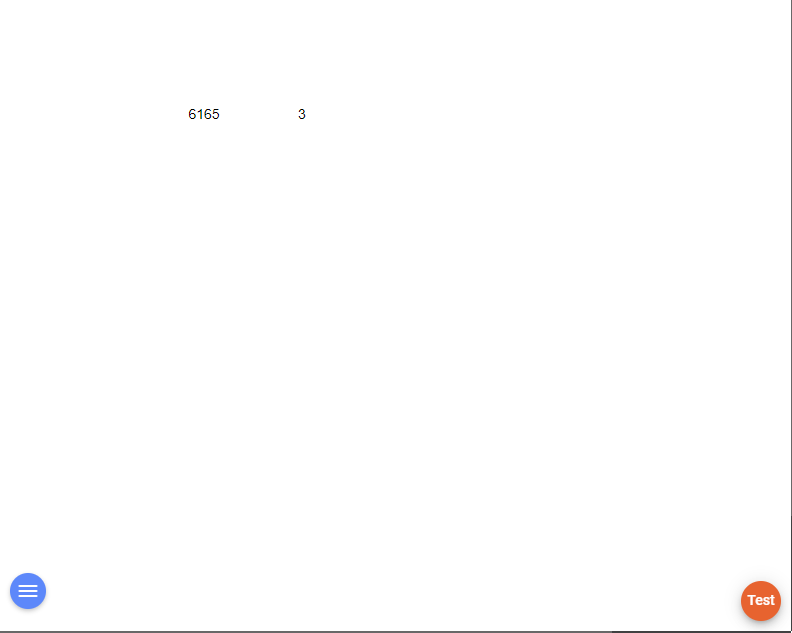
The play button  at the top left gives a
live preview:
at the top left gives a
live preview:
Bar graphs#
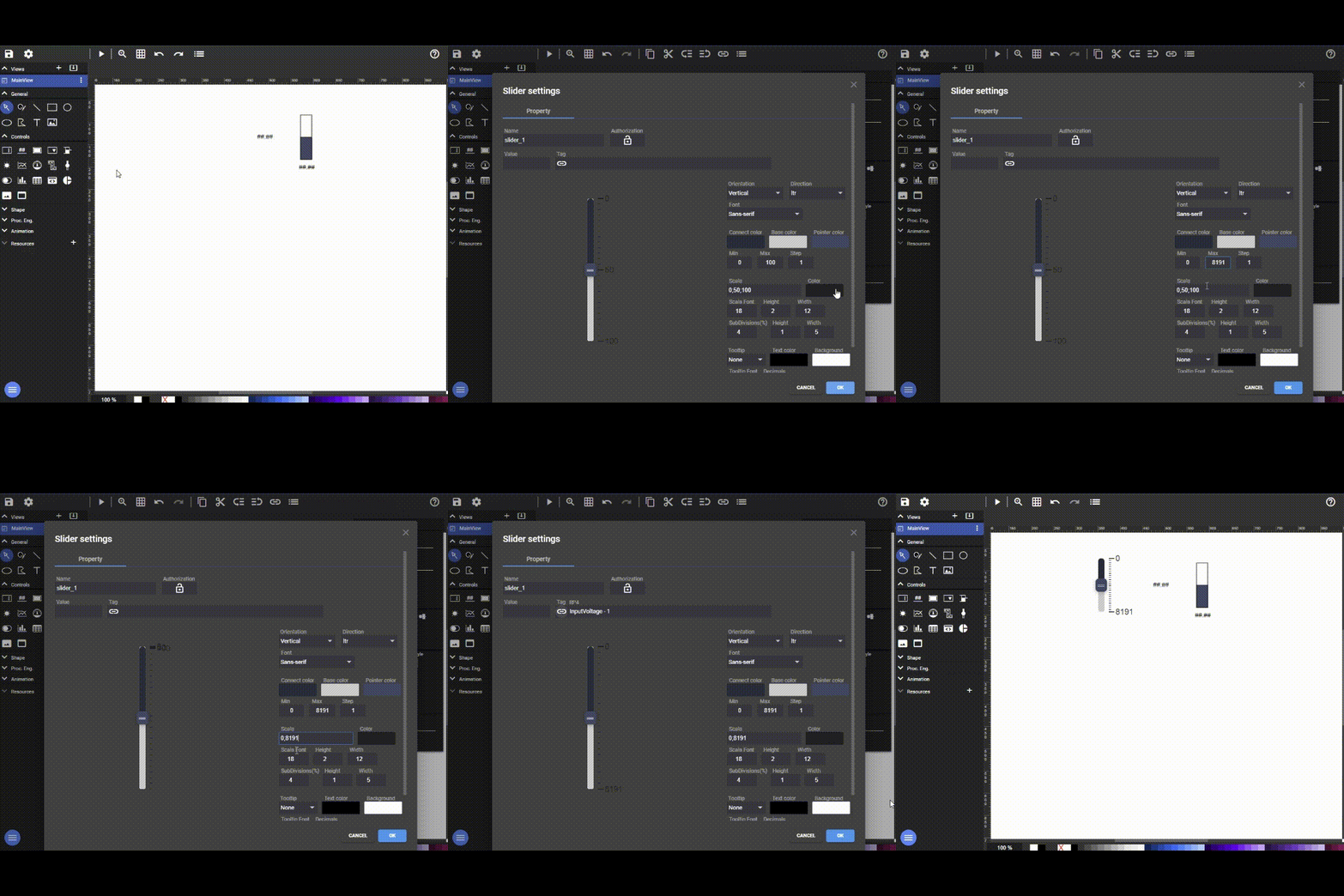
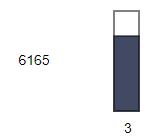
A bar is more legible than a number for anything with a range. Bind it to the tag and set the minimum and maximum to match:
Writing values back#
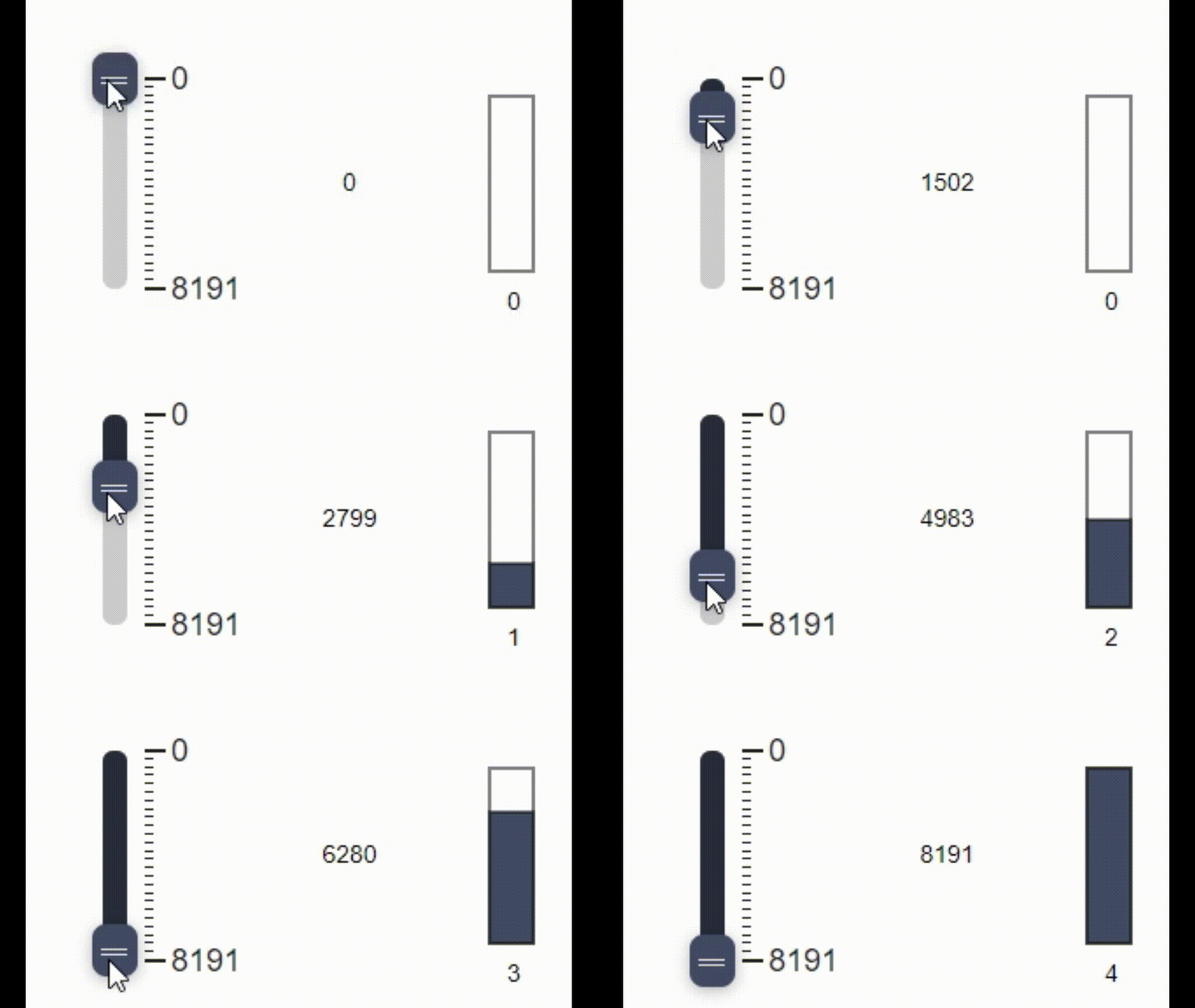
Sliders, buttons and input fields write to a tag, which means an operator can change a setpoint from the dashboard.
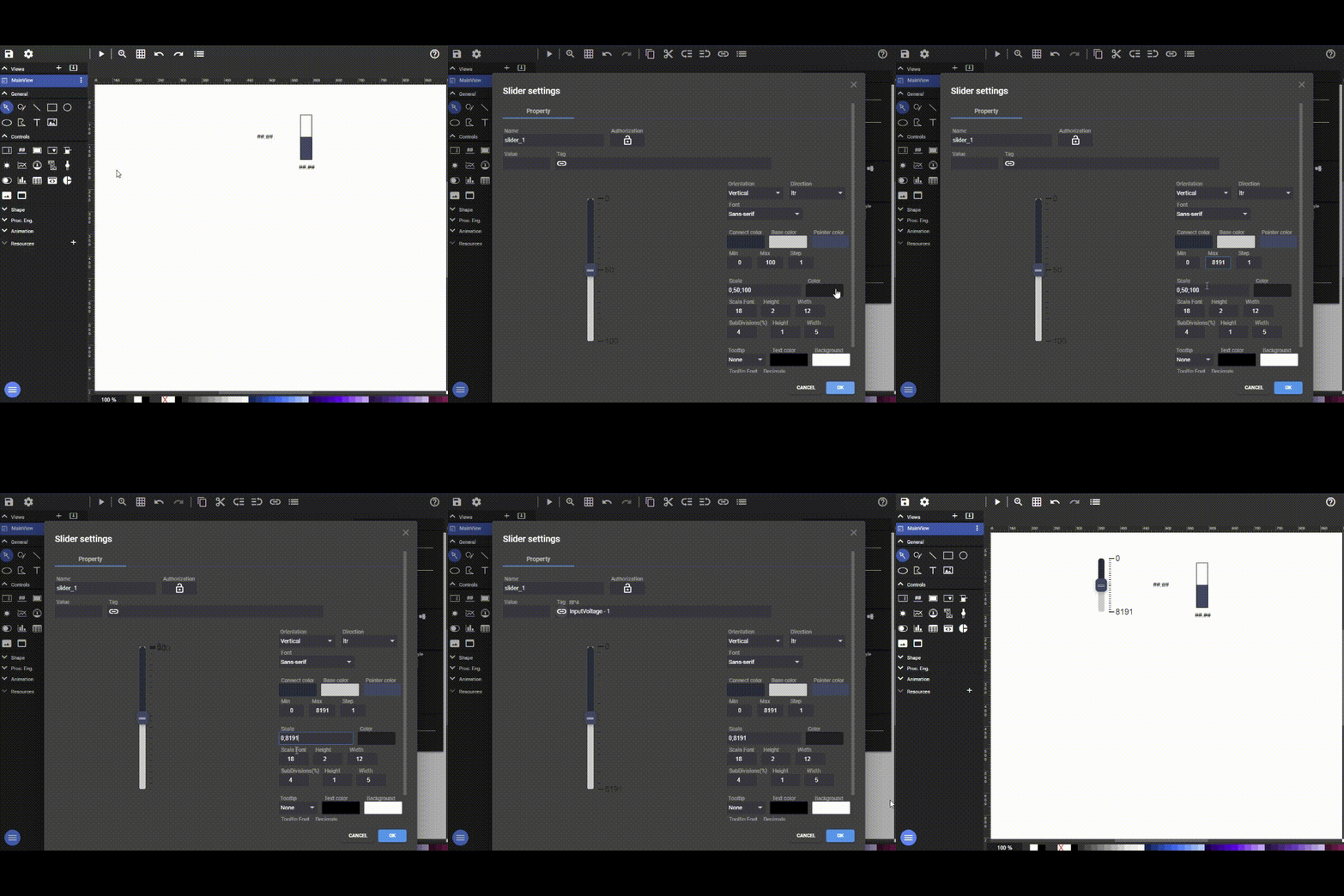
Set the slider’s scale and limits to match the real range of the value.
Validate what comes back from the HMI
An HMI writing directly into a register that your control logic acts on provides a path from a touchscreen into your process. The limits configured in FUXA are a convenience rather than a guarantee, because anything that can reach that Modbus port can write any value.
Clamp and sanity-check every incoming setpoint in the PLC program or in your control loop:
IF setpoint > MAX_SAFE THEN setpoint := MAX_SAFE; END_IF;
IF setpoint < MIN_SAFE THEN setpoint := MIN_SAFE; END_IF;
Do not rely on the HMI to be the only thing that ever writes.
A Python Modbus server#
A minimal server that publishes an analog input and takes a setpoint for an
analog output. It listens on port 1502. To use the standard Modbus port 502,
run the program as root; any port above 1024 works without root.
#!/usr/bin/env python3
"""Expose backplane data to FUXA over Modbus TCP."""

import signal
import time

import synergy_logic
from pyModbusTCP.server import DataBank, ModbusServer

running = True

def shutdown(signum, frame):
    global running
    running = False

signal.signal(signal.SIGTERM, shutdown)
signal.signal(signal.SIGINT, shutdown)

base = synergy_logic.Base()
level = base[1][1]      # SLM-AI-8-V
valve = base[2][1]      # SLM-AO-8-V

bank = DataBank()
server = ModbusServer(host="127.0.0.1", port=1502, no_block=True, data_bank=bank)
server.start()

try:
    while running:
        # Publish the reading -- FUXA reads this as 300002
        bank.set_input_registers(1, [level.value])

        # Take the setpoint -- FUXA writes this as 400002
        setpoint = bank.get_holding_registers(1, 1)[0]
        valve.value = min(setpoint, 4095)

        time.sleep(0.1)
finally:
    valve.value = 0
    server.stop()
pip3 install --user --break-system-packages pyModbusTCP
This installs the package for the slm-rp4 user only. A program run as root needs it installed with sudo.
Register numbering in pyModbusTCP
pyModbusTCP takes an offset within the block, without the leading digit of
the traditional notation. Holding register 400001 is offset 0, 400002 is
offset 1, 423000 is offset 22999.
set_holding_registers(address, word_list) takes a list, even for a single
value: [value], not value.
Both are common causes of a tag that exists but never updates.
This program accesses the backplane directly and must not run while a PLC program is running. See Sharing the Hardware.
Running both at boot#
FUXA runs as its own service; see Running on Boot. When it connects to a Python or C++ server that also runs as a service, order FUXA after it:
[Unit]
Description=FUXA HMI server
After=network.target my-controller.service
Wants=my-controller.service
FUXA reconnects on its own if the server is not up yet, so this is a politeness rather than a requirement.
Security#
FUXA serves an unauthenticated web application on port 1881 by default, and the Modbus port it talks to has no authentication at all.
Keep both on the control network. Do not forward 1881 to the internet.
Enable FUXA’s own authentication if it will be reachable by anyone who should not be changing setpoints.
Treat any writable tag as something an attacker on that network can set.
Further reading#
FUXA wiki, the project’s own documentation