

Configuring the Backplane#
The Backplane Configuration screen defines which module is fitted in each slot of the rail. This declaration generates the project’s I/O map, which provides every address referenced by the program.
Open it from Device → Backplane Configuration, with SLM-RP4 selected as the target device.
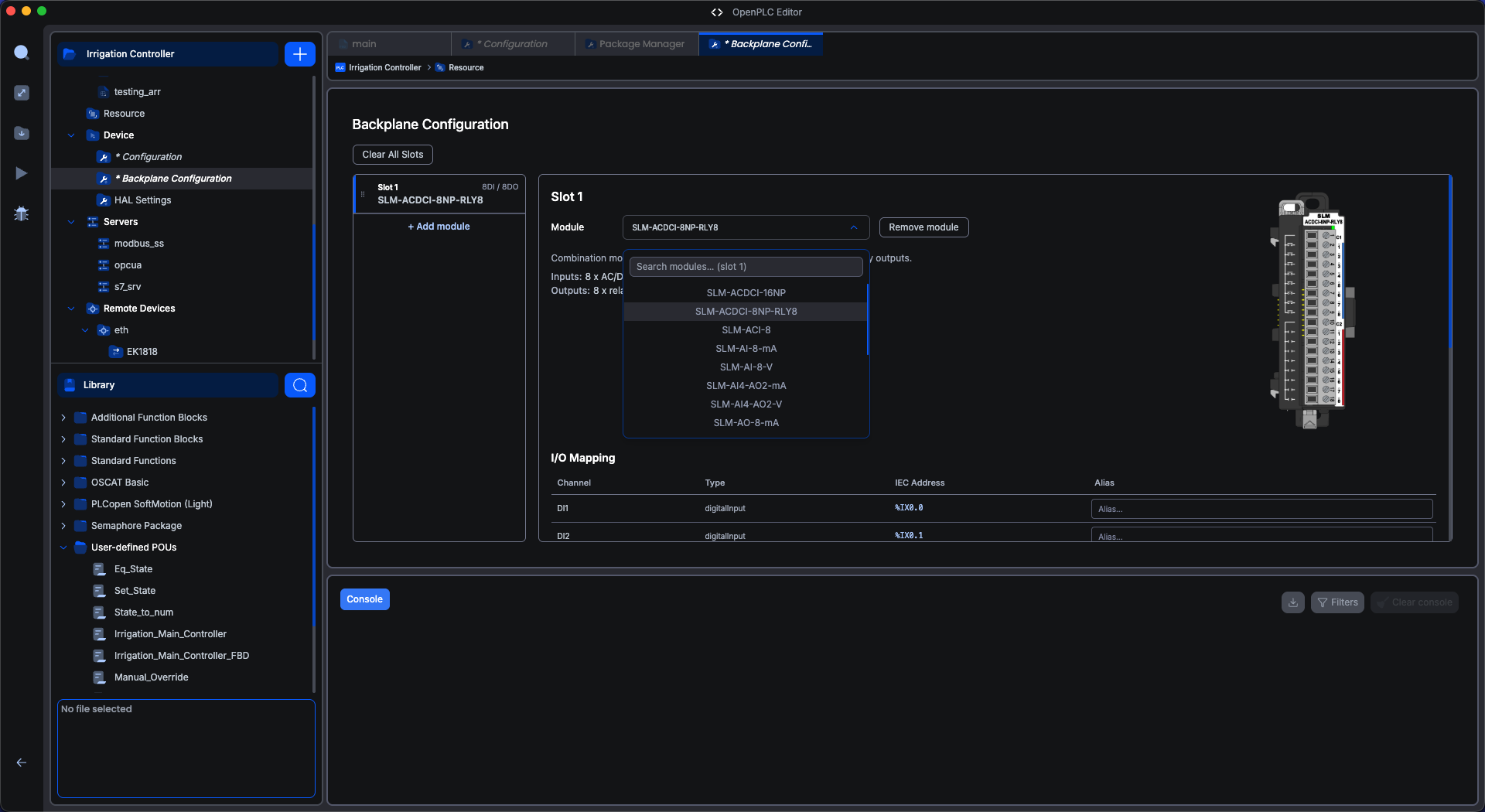
The screen#
Left Panel: the slot list, in rail order. Each card shows the slot number, the
module name, and a summary of its channels (8DI / 8DO). Below the last slot is
the + Add module button.
Right Panel: the detail panel for the selected slot with a module picker, the module’s description and specifications, its photo, any per-module configuration form, and the I/O Mapping table.
Top: Clear All Slots button, which empties the configuration after confirmation.
Adding a module on the backplane#
Click + Add module to append a slot.
Open the Module dropdown in the detail panel. It lists all eighteen supported modules and has a search box. Type
AIorRLYto filter.Pick the module fitted in that physical position.
Repeat for every module on the rail, in order, left to right, starting with the one immediately beside the base.
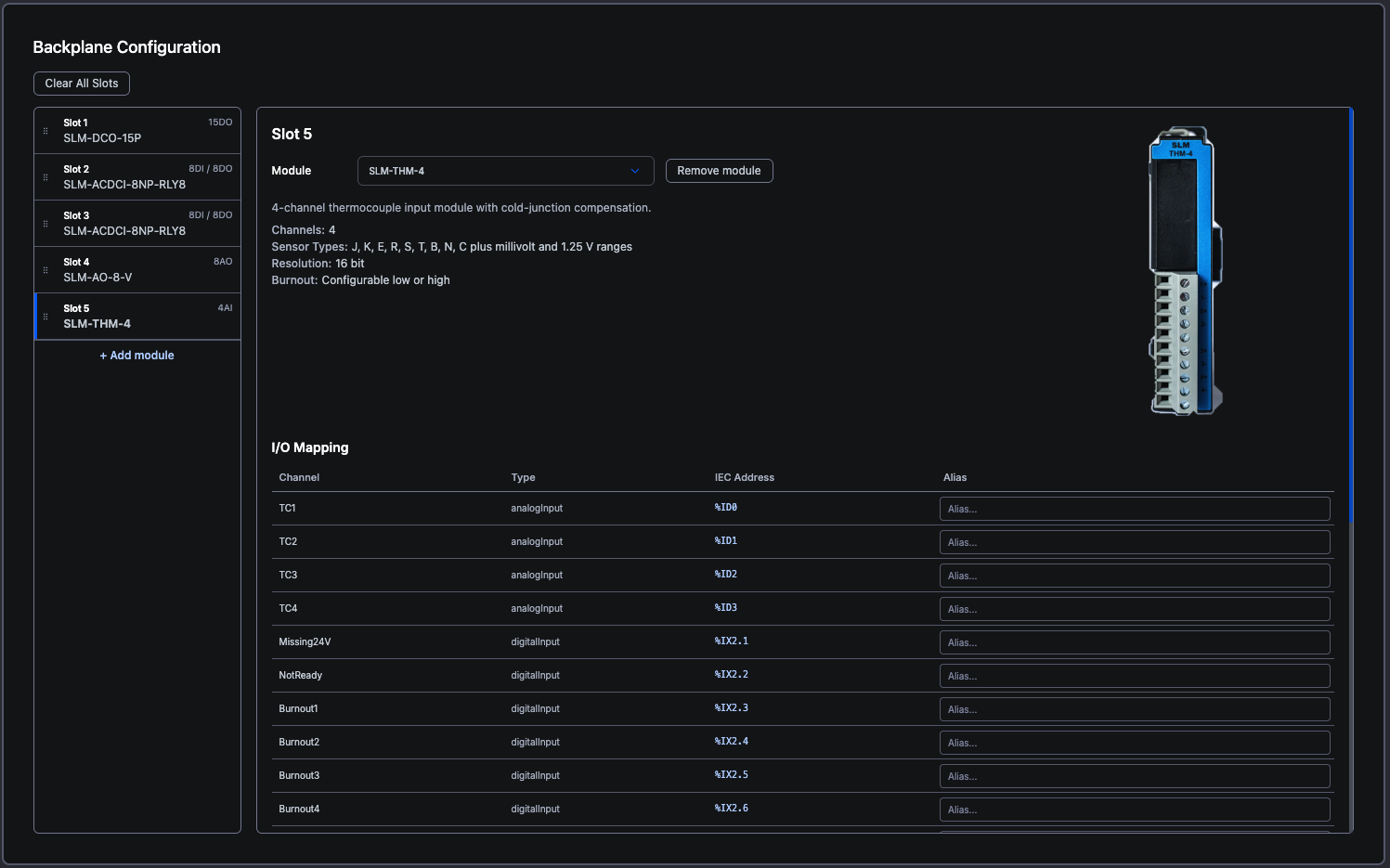
Remove module clears a slot. Slots can also be reordered by dragging their cards, which avoids retyping the stack when the order is wrong.
The I/O Mapping table#
Scroll the detail panel to I/O Mapping. Every channel the module offers is listed with the address the editor generated for it:
Channel |
Type |
IEC Address |
Alias |
|---|---|---|---|
DI1 |
digitalInput |
|
|
DI2 |
digitalInput |
|
|
… |
Addresses are assigned automatically, in slot order. You do not choose them, and they shift if you insert or remove a slot earlier in the stack. For this reason, use aliases rather than raw IEC addresses for I/O allocation (see below).
Aliases#
The Alias column is free text. Give a channel a name here, like Start_PB,
Motor_Run, or Tank_Level, and it becomes available as a symbolic name in your
program instead of a raw address.
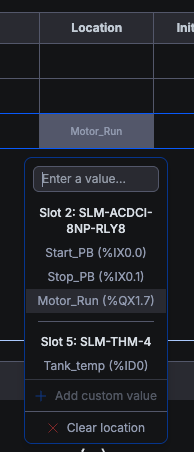
Start_PB survives a module being inserted into slot 2 later; %IX3.0 does
not.
Per-module configuration#
Discrete modules have no configuration parameters. Analog and temperature modules do. When a configurable module is selected, a Configuration form appears below the I/O Mapping table. The parameters available depend on the module and are labelled on the screen.
In addition to the module-specific parameters, analog modules have two settings that decide how their values reach the program.
Reading Format selects the data type:
Option |
Behavior |
|---|---|
Raw counts (default) |
Each channel is an integer count, as a |
Engineering units |
Each channel is converted to the module’s physical unit (volts, milliamps, degrees Celsius or Fahrenheit, depending on the module), as a |
Counts Scaling applies only to Raw counts and selects the range of those counts:
Option |
Behavior |
|---|---|
Module resolution (default) |
Counts are reported at the converter’s native resolution: 0–8191 for a 13-bit input, 0–4095 for a 12-bit output. This matches the Python and C++ libraries. |
Rescaled to 0 - 65535 |
Counts are stretched linearly across the full |
Thermocouple burnout
For thermocouple modules, the Burnout Detection setting determines what the channel reports when the thermocouple circuit opens, such as a broken wire or a disconnected probe. Low drives the reading to the bottom of the range; High drives it to the top. Choose the direction that drives the control logic toward its safe state: for a heating process, use High, so a broken sensor reads as over-temperature and turns the heat off rather than on. In either case, also monitor the channel’s burnout status bit. See Example: Thermocouple Monitoring.
Next#
HAL Settings, covering how fast the backplane is scanned and what happens when it faults.