
Quick Start: OpenPLC#
The SLM-RP4 ships with OpenPLC Runtime pre-installed. No device-side setup is required before programming. This guide creates and runs a first OpenPLC project in approximately fifteen minutes.
The program is implemented in Ladder Diagram. A Structured Text equivalent is provided for reference in step 9.
Before you start
The SLM-RP4 mounted, wired to 24 V, and plugged into your LAN.
At least one discrete output module fitted. This page assumes an SLM-DCO-15P in slot 1. Any output module works as the addresses are the same.
A computer running Windows, macOS or Linux on the same network as the SLM-RP4.
Where the OpenPLC documentation lives
This manual documents the SLM-RP4 specifically. It does not re-explain OpenPLC Editor, IEC 61131-3, or the runtime as those have their own reference manual at edge.autonomylogic.com/docs.
Relevant sections:
1. Install OpenPLC Editor#
The SLM-RP4 is programmed with the desktop version of OpenPLC Editor, version 4.3.1 or newer.
Go to autonomylogic.com and select Products → OpenPLC Desktop to open the OpenPLC download page.
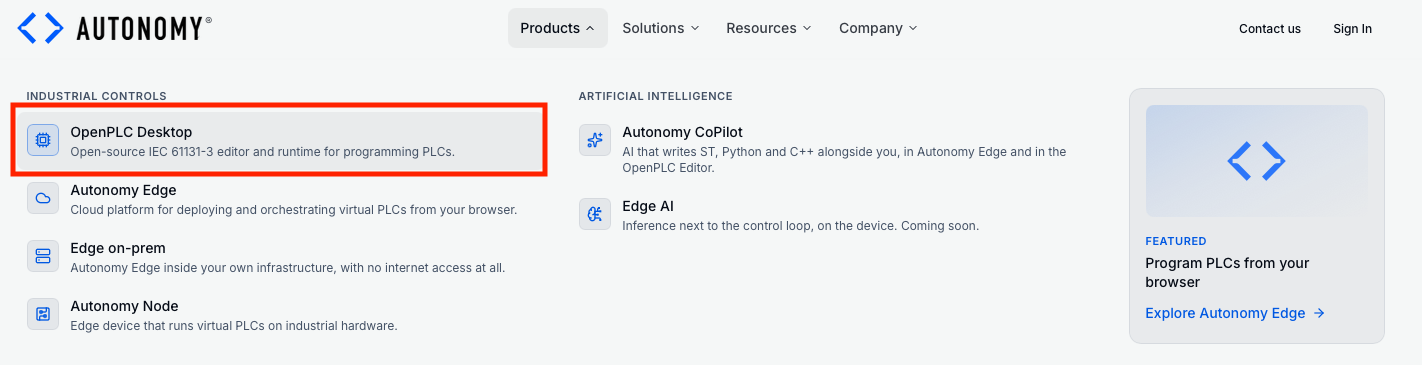
Under Download the OpenPLC Editor, the page recommends an installer for the operating system you are browsing from. Click Download Now. Installers for other operating systems and processor architectures are listed under Other platforms.
Run the downloaded file:
Windows (
.exe): run the installer. It creates an OpenPLC Editor shortcut on the desktop.macOS (
.dmg): open the disk image and drag OpenPLC Editor into Applications.Linux (
.AppImage): mark the file as executable (chmod +x OpenPLC.Editor-*.AppImage) and run it.
2. Power up#
Apply 24 V. The device boots in under a minute and starts OpenPLC Runtime automatically.
3. Open the editor and create a project#
Launch OpenPLC Editor. The initial screen is the project launcher.
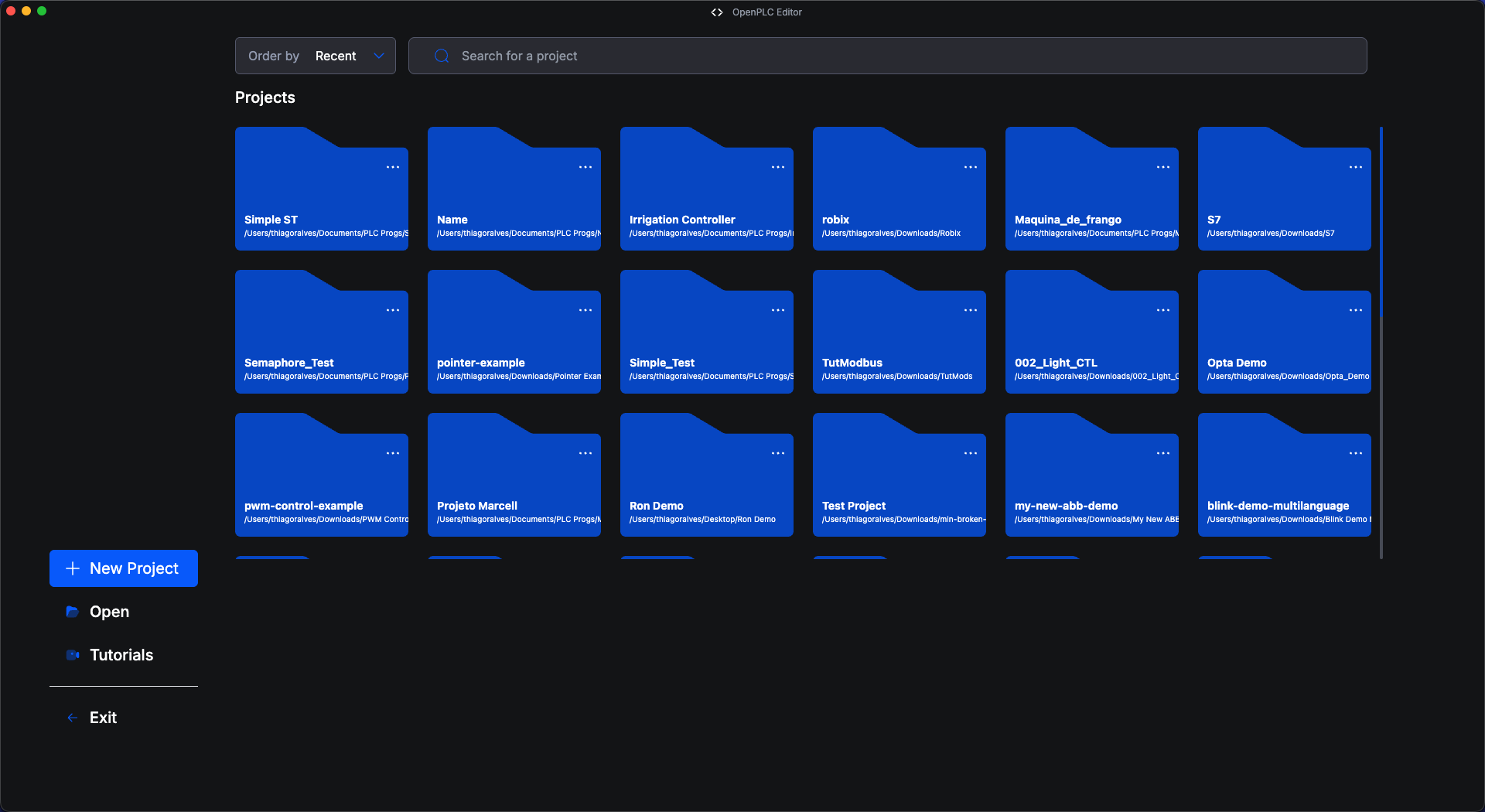
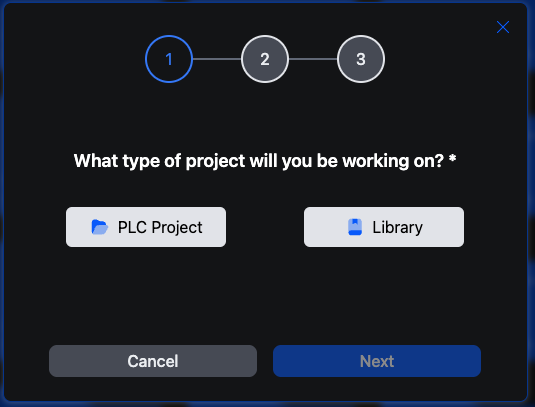
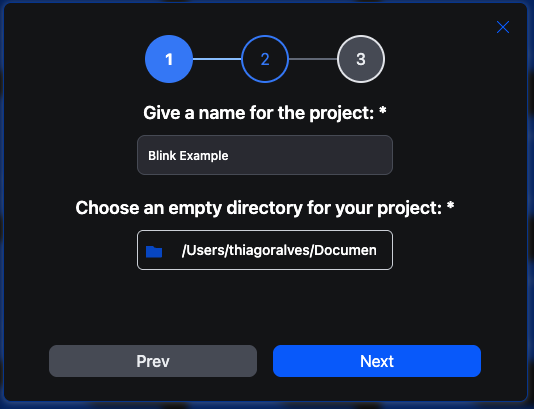
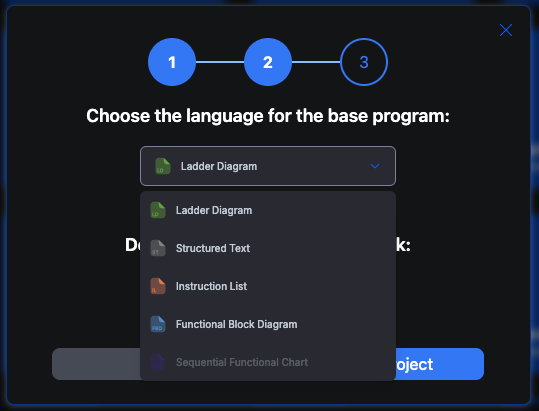
Click + New Project. The New Project wizard has three screens:
Project type. Select PLC Project and click Next.
Name and location. Enter a name for the project, choose an empty folder to store it in, and click Next.
Language and cycle time. Select Ladder Diagram as the language for the first program, keep the default cyclic task time of T#20ms, and click Create Project.
4. Install the SLM-RP4 support package#
Support for specific hardware on OpenPLC comes as a Vendor Plugin Package (VPP) that you install once.
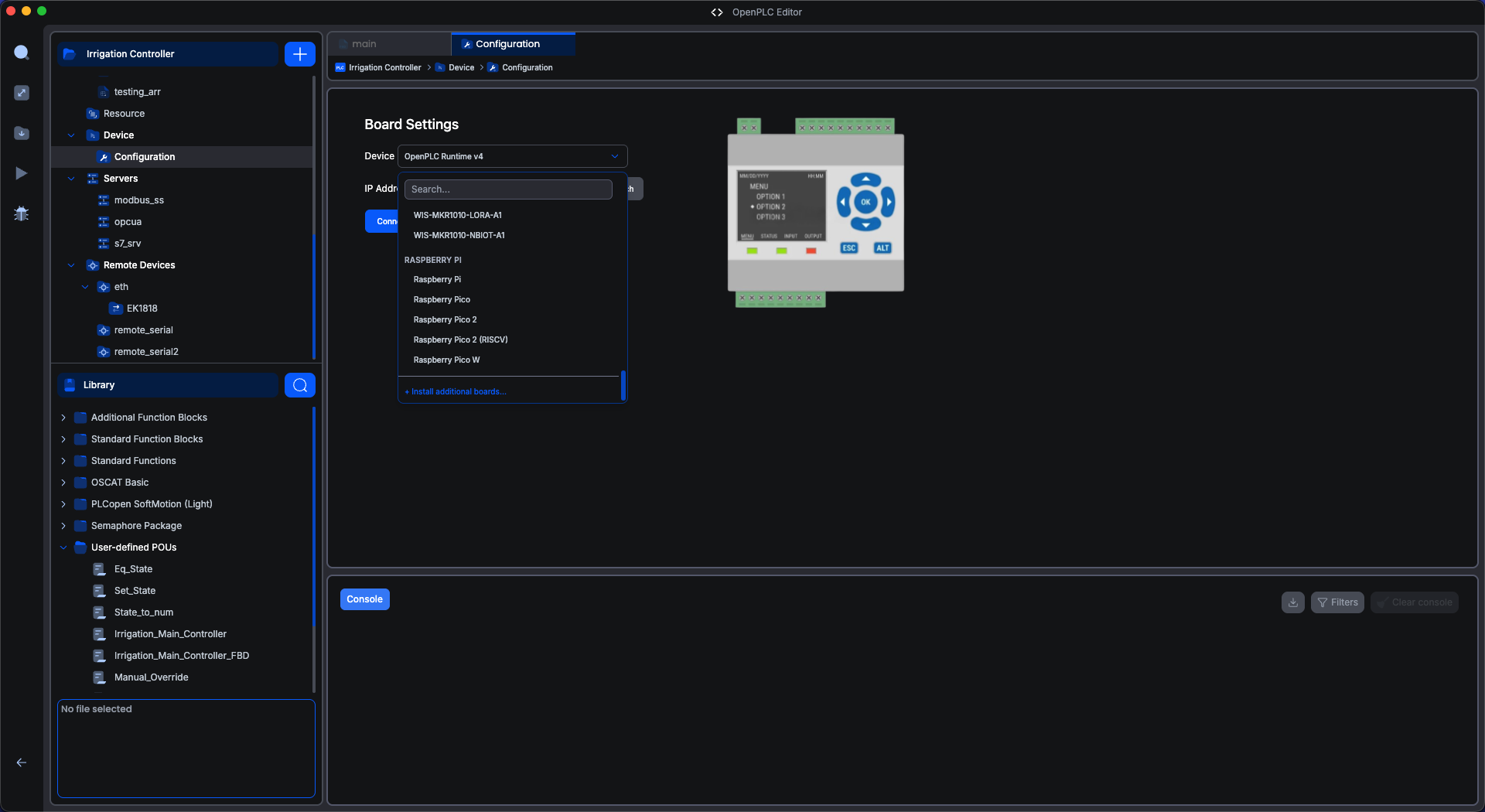
In the project tree, open Device → Configuration. Open the Device dropdown and click + Install additional boards… at the bottom.
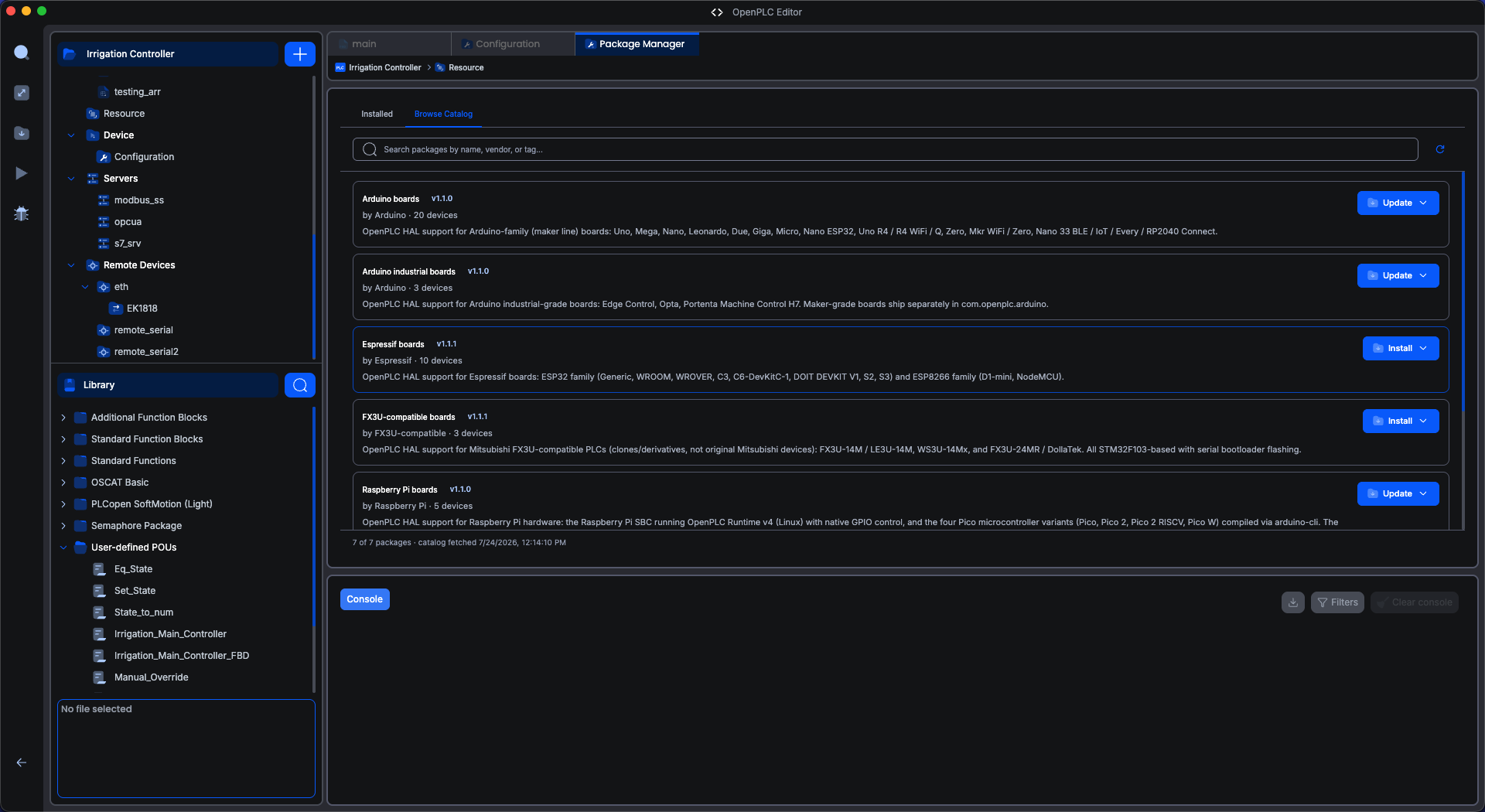
The Package Manager opens. Switch to Browse Catalog, find Synergy Logic SLM-RP4, and click Install.
5. Select the board#
Go back to Device → Configuration. The dropdown now has a SYNERGY LOGIC group. Choose SLM-RP4.
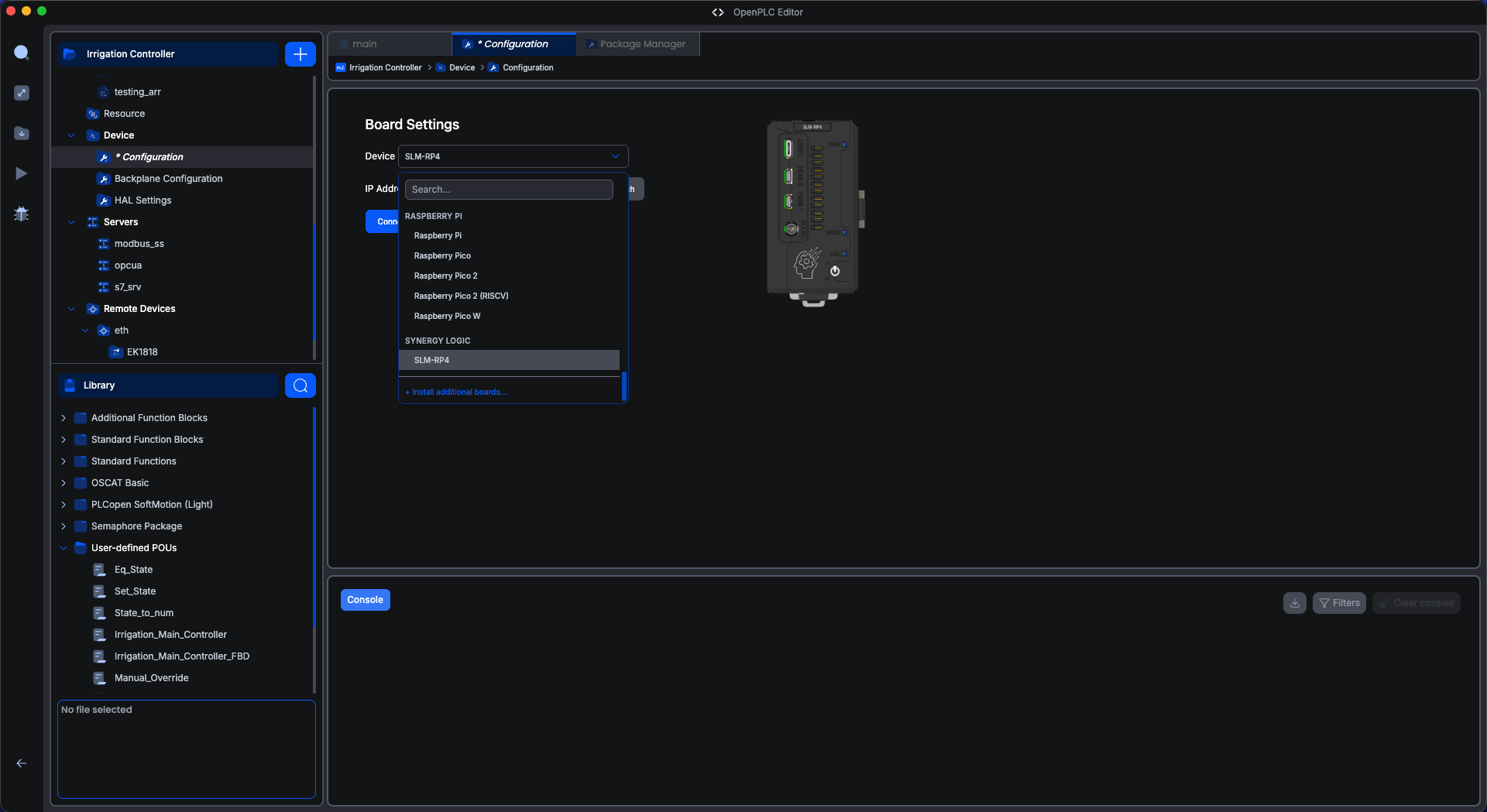
Once you select the SLM-RP4 device, two new entries appear under Device in the project tree: Backplane Configuration and HAL Settings. Those come from the package and are used to set up the backplane modules and adjust driver (HAL) settings.
6. Device Discovery#
Still on Device → Configuration, in the Board Settings section, click Search next to the IP address field.
The editor broadcasts on the local network and lists every OpenPLC runtime that answers. Devices listed will show the IP address followed by the version of OpenPLC runtime running on that device. Select your SLM-RP4 device and click OK.
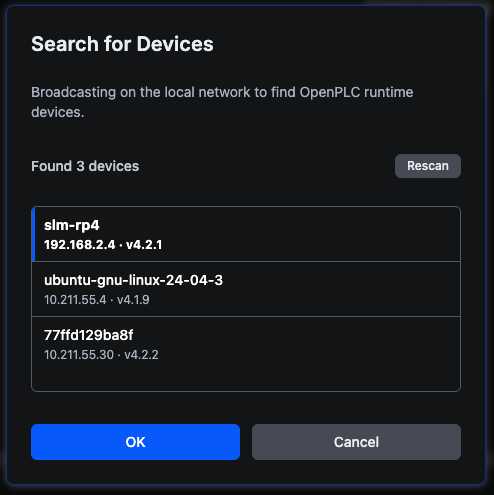
Click Connect.
No devices listed
Discovery uses a UDP broadcast, and broadcasts do not cross subnets. Confirm that your computer and the SLM-RP4 are on the same subnet. If they are not, enter the IP address by hand; the connection itself routes normally.
7. Create the first user#
A new SLM-RP4 has no user accounts. The first time you connect, the editor asks you to create one.
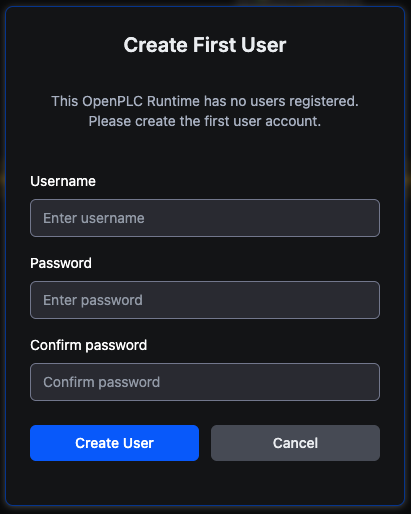
Important
These credentials live on the device, not in any cloud account. Store them somewhere safe. If you lose the password, see Recovery and Factory Reset.
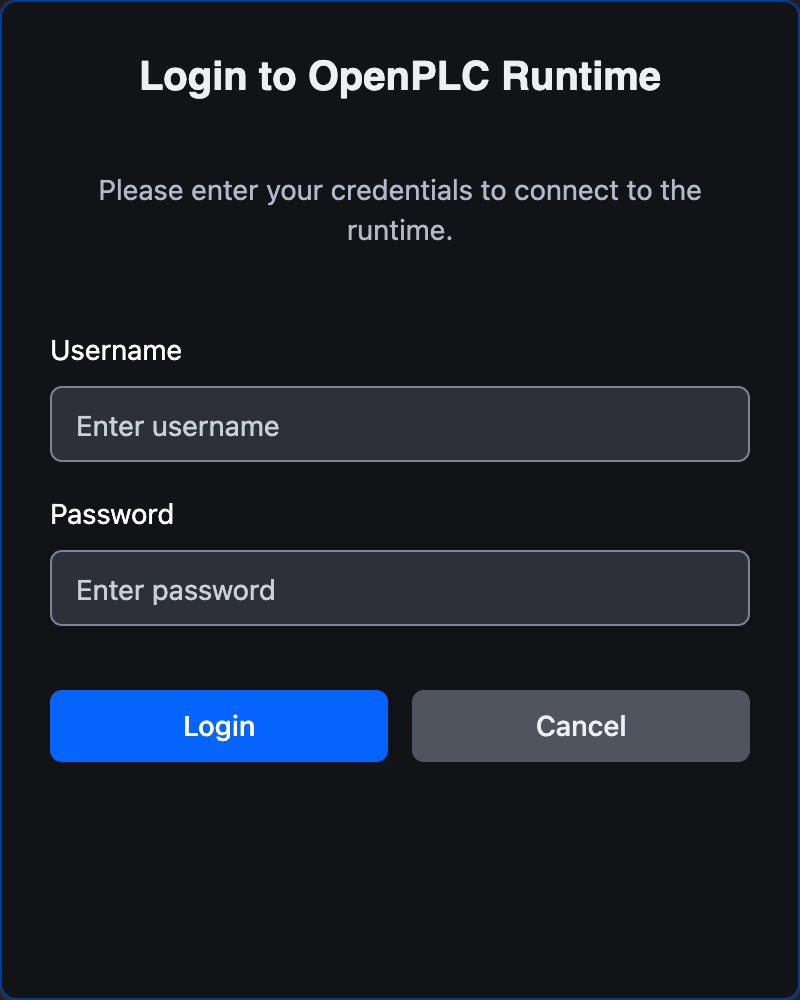
On every later connection, the editor shows a login dialog instead. Enter the same credentials.
8. Configure the backplane#
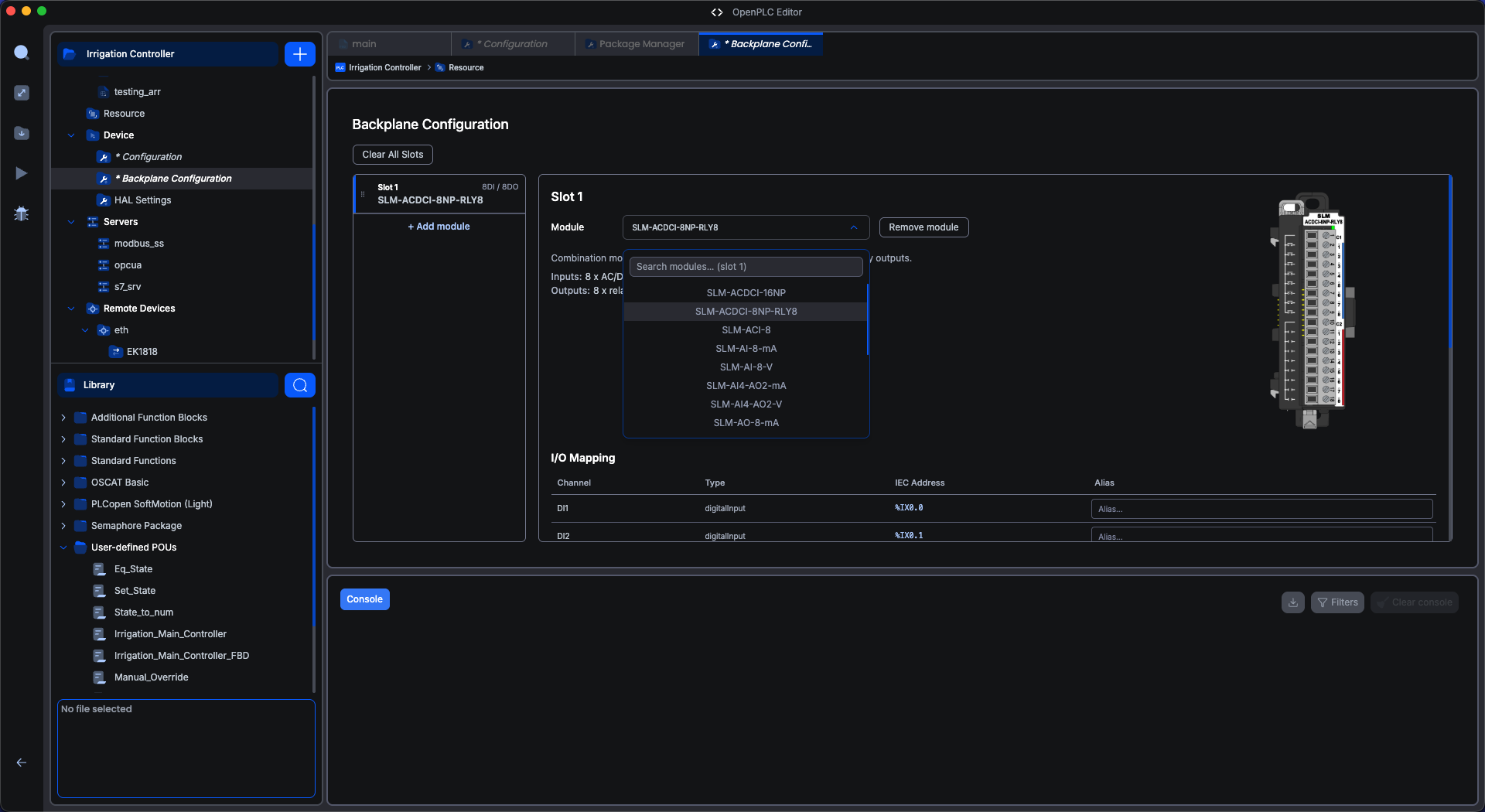
Open Device → Backplane Configuration. Click + Add module, then pick SLM-DCO-15P from the Module dropdown for slot 1.
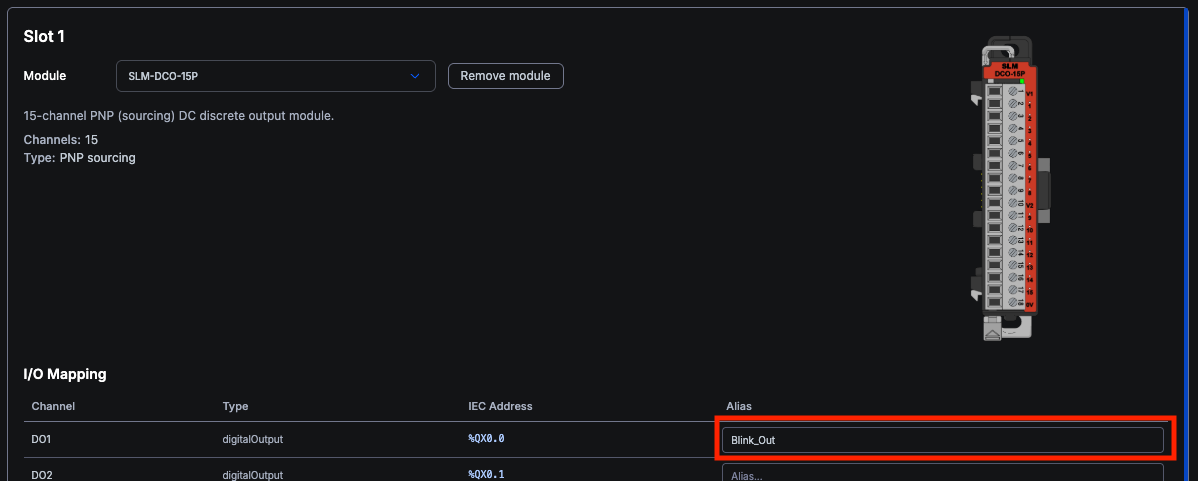
Scroll down to I/O Mapping. Every channel on the module is listed with its
IEC address. In the Alias column of the first channel, DO1 (%QX0.0),
type Blink_Out. Your program will refer to this output by that name.
Always connect I/O through aliases
IEC addresses are assigned automatically and can change when the project changes, for example when a module is added or moved. An alias stays attached to its I/O point, so variables connected through aliases keep reaching the correct channel even if the addresses behind them are rearranged.
An alias must be a single word made of letters, digits and underscores, starting
with a letter or underscore. For example, Motor_Start or DO1 are valid;
Motor Start and DO-1 are not.
9. Write the program#
Open the program POU created with the project and build one rung: a normally
closed contact on blink, a TON, a TOF, and a coil back on blink.

To build this diagram, drag and drop elements onto the rung from the narrow toolbar on the far left edge of the editor, which holds the contact, coil and block icons:

A contact is added as normally open. To make it normally closed, double-click the contact on the rung to open Edit Contact Values, select Negated under Modifier, and click Confirm.
When adding contacts or coils, typing a variable name on top of the element associates the element with a variable. If the variable does not exist, the editor automatically creates one for you.
To connect blink to the output, type the alias defined in step 8,
Blink_Out, in its Location column:
Name |
Class |
Type |
Location |
|---|---|---|---|
|
Local |
|
|
The same program in Structured Text:
The variables pane itself has two views, switched with the table/code icons in its top-right corner. Fill in the table by hand, or switch to text mode and paste the declarations in. Both tabs below describe the same three variables:
Name |
Class |
Type |
Location |
Initial Value |
|---|---|---|---|---|
|
Local |
|
|
|
|
Local |
|
||
|
Local |
|
TON and TOF are under System Libraries in the Type dropdown.
Switch the variables pane to text mode with the code icon in its top-right corner, then paste this in:
  VAR
    blink : BOOL AT Blink_Out;
    pulse : TON;
    off_delay : TOF;
  END_VAR
Then type this into the code body:
pulse(IN := NOT blink, PT := T#500ms);
off_delay(IN := pulse.Q, PT := T#500ms);
blink := off_delay.Q;
10. Upload and run#
Choose Build & Upload. The editor compiles the project, transfers it to the device, and the runtime builds and loads it.
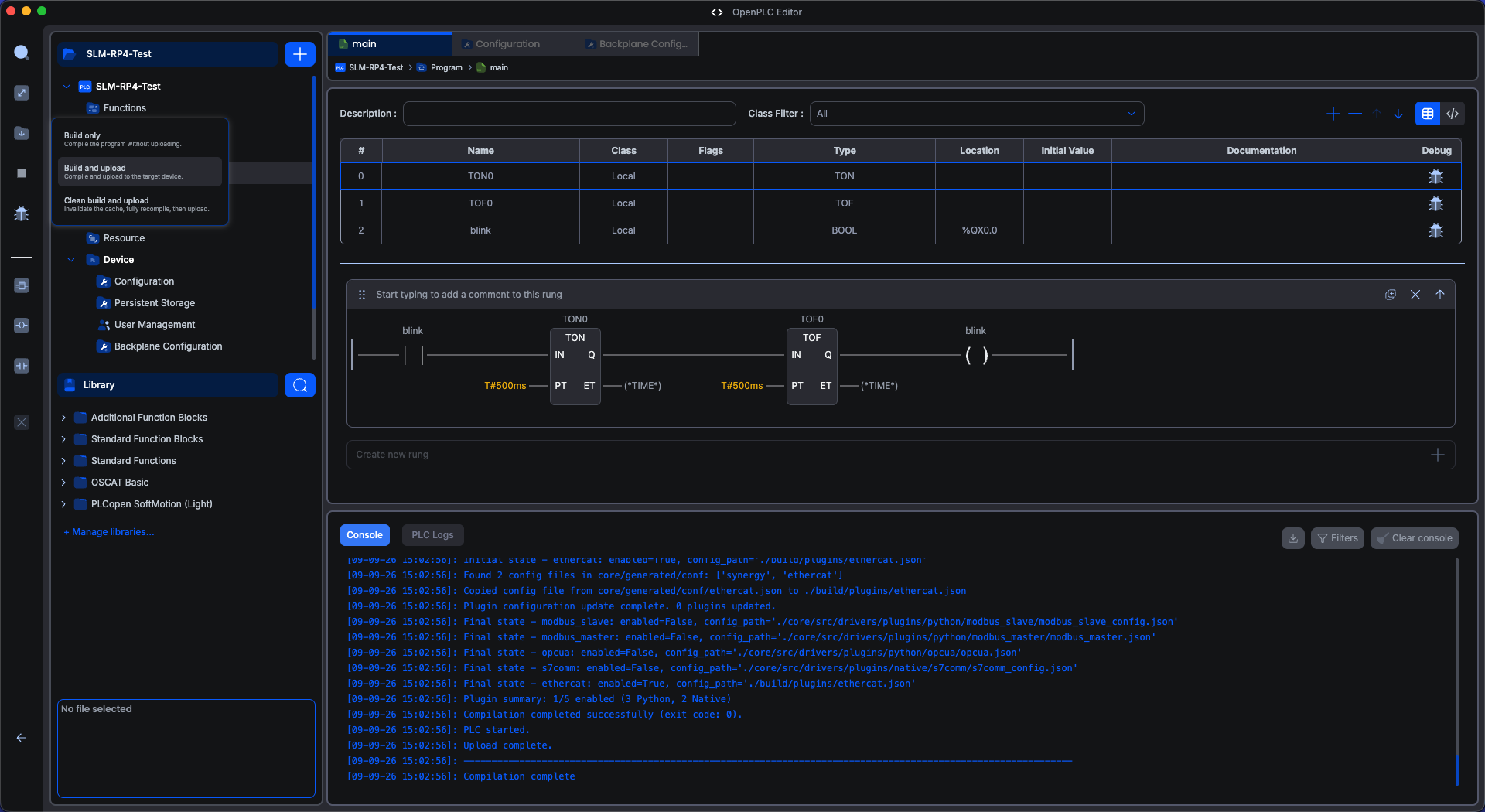
When the build finishes, the program will automatically run on your SLM-RP4, blinking
the first digital output of the SLM-DCO-15P module. If the program does not start,
check if the compilation process finished without errors, and if the toggle switch
is at the T position.
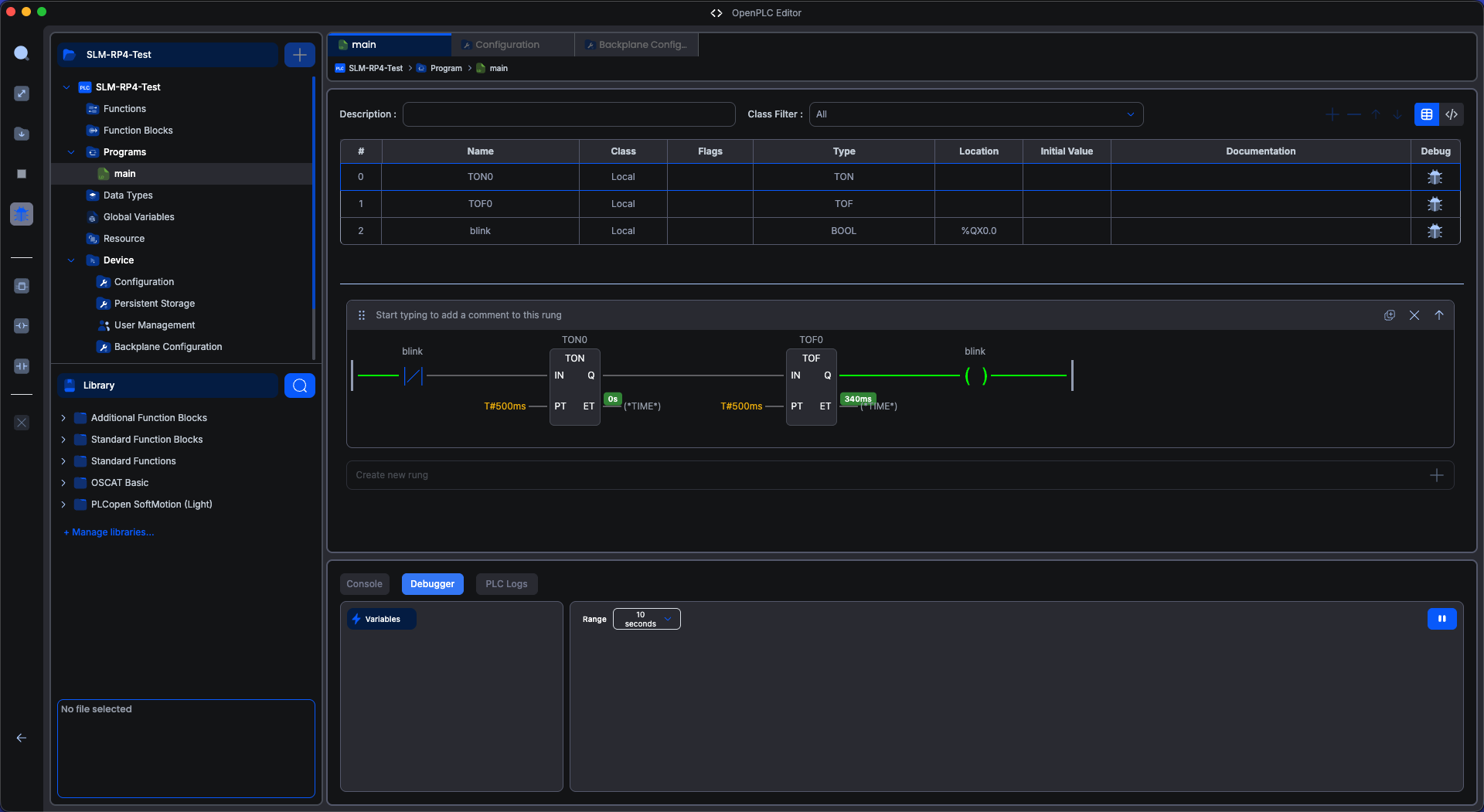
Once the program is running you can debug it to see the flow in real time on the editor. To start the debugger, click on the bug icon on the left sidebar and wait a few seconds for the editor to establish the debugging session with the runtime. Once the session is established you will start seeing green lines representing the logical flow in your Ladder Diagram. If you wrote your project in Structured Text, the values of your variables appear next to them in green badges.
See the OpenPLC Editor debugger documentation for the full feature set.
Python function blocks
OpenPLC Editor supports Python function blocks: Python code written directly into the PLC project, executed within the PLC scan as any other IEC 61131-3 block. The runtime continues to provide deterministic timing, fault handling, and safe shutdown while the block runs Python internally.
This is often sufficient when the project needs capabilities not available in IEC 61131-3, without taking on the responsibilities of a stand-alone program. See the Python function block documentation.
Next#
Configuring the Backplane, covering the full backplane screen and the per-module configuration for analog and temperature modules.
HAL Settings, covering scan cycle and bus fault handling.
Module Catalog, for the specifications and datasheet of every module.